Planner
The planner is a canvas for one project’s plan. Open it with the Planner button in the Lanes view’s title bar, or the Open Planner command in the command palette.
On the canvas:
- Nodes are jobs or notes.
- Edges are dependencies: the job at the arrow’s end waits for the one at its start.
- Modules are group nodes that hold other nodes. Double-click a module to drill into it; breadcrumbs take you back out.
Each job node shows its gates and, once the plan is running, its live state.
Opening the planner
There are three ways in:
- Command palette: run Open Planner. It opens the canvas of the project you are looking at, or your first project if no project is in view.
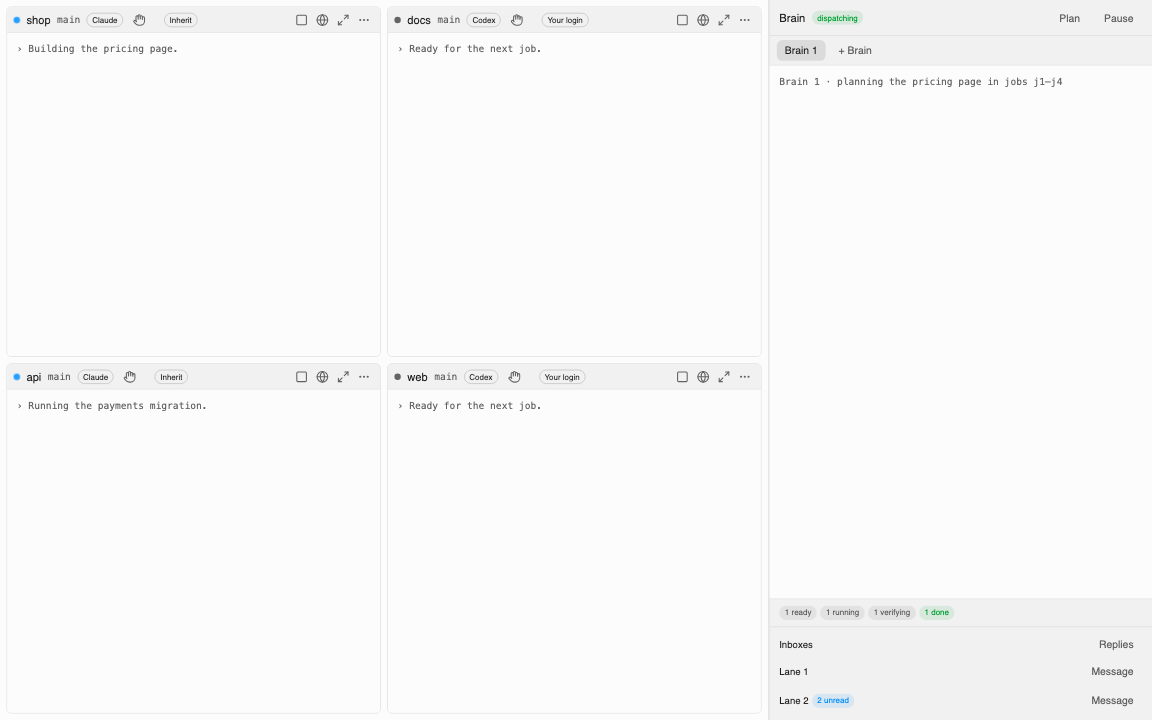
- Lanes view: the Planner button in the titlebar opens the canvas of the first lane’s project in the current tab.
- Brain drawer: the Plan button opens the canvas of the project the selected Brain session works in.
Each project has its own canvas. Opening the planner again for the same project brings back the same canvas.
Building a plan
Use the toolbar to add a Job, a Note or a Module, and drag between nodes to connect them.
| Action | Keys |
|---|---|
| Delete the selection | Delete or Backspace |
| Undo (this session) | ⌘Z / Ctrl+Z |
| Copy, paste | ⌘C, ⌘V / Ctrl+C, Ctrl+V |
| Run plan | ⌘Enter / Ctrl+Enter |
| Up one module | Escape |
| Box select | Shift-drag |
| Add to the selection | ⌘-click / Ctrl-click |
Rules worth knowing:
- An edge that touches a module stands for every job inside it, at any depth.
- Notes and modules never become jobs.
- A node inside a module stays inside it. To move a node to another module, copy and paste it.
- A canvas holds up to 500 nodes and 2,000 edges.
Running a plan
Run plan compiles the canvas into Brain jobs and dependencies:
- It is idempotent. Each node keeps its identity, so running the plan again updates jobs rather than duplicating them.
- Removed nodes are archived, not deleted.
- Cycles are refused. If the dependencies loop, nothing runs, and the planner shows the loop.
- Every job gets at least the gates your rigor settings require.
Once jobs exist, each node’s colour follows its job’s state as lanes pick it up.
If the Brain is not connected, Run plan says so. It never pretends to succeed.
Draft from brief
The toolbar has a Draft from brief button. The intended behaviour is that the Brain proposes nodes from a written brief, and you accept them on the canvas. In v0.1 drafting is not available yet, and proposed nodes never compile until you accept them.
Where canvases are saved
Canvases are saved per project. The viewport (pan and zoom) is remembered separately for 90 days. If a stored canvas is damaged or too large, it loads empty with a notice, rather than failing.